SOLVED Sequoia Keeps Removing Cloud Backups Locally

Joined
Nov 17, 2024
Messages
16
Reaction score
0
Hi Yall

So I've got a 2022 Macbook Air running Sequoia 15.3.1. I'm using Proton Drive for my backup. For a while my mac was removing cloud backups locally, which was VERY annoying--if I download a word file I want to work on offline, I don't want it disappearing every time I close the window, and I want my music to stay on my mac and not require an internet connection to play my favorite songs.

In the past I had read about an "optimize mac storage" option which could be turned off. However I cannot find it--the internet searches I have done all indicate it should be in the iCloud menu of System Settings (or sometimes "System Preferences" which I assume is the same?). In the past I had found this setting and been able to keep my mac from deleting the files on my hard drive. Now, however, I cannot find it, and my mac has resumed deleting local copies of anything saved to the cloud.

I've also tried to fix this by manually clicking on the little cloud download icon in Finder for the folders I want. Sometimes I have clicked on the subfolders as well, though I'm not sure that's actually necessary. In any case clicking on this icon does result in my downloading the files... it's just that they've been deleted again the next time I look.

FWIW I've also clicked through as much of the iCloud menu as I could. I tried "manage storage" but saw no option to turn off this "optimization" there.

Is there a setting that I'm missing or some way to fix this? This is really kind of maddening, I've probably downloaded my music five different times now.
 
Last edited:
Joined
May 7, 2023
Messages
804
Reaction score
128
Hi there,

if you only have the 1 Mac there is really no reason to have your files stored in the cloud vs keeping them on your computer.

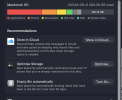
I would recommend turning off Desktop and Documents in the iCloud Drive Settings. This is the same place where the Optimize Storage setting is.

Open System Settings
On top left Click on your name
On the right side click on iCloud.
Click on the Drive button
You will see the settings for iCloud Drive
 
Joined
Nov 17, 2024
Messages
16
Reaction score
0
Thanks MacsBug.

So that is where the Optimize Storage setting is! Although for better or worse, it was already turned off. I have, though, turned off iCloud as you recommended.

I do want to keep using proton drive to back up documents though. I am concerned that if something happens to this mac--maybe my home burns down, maybe I spill soda on it, whatever--I want to be able to access the files again. And I don't want the chore of backing up the files every week to local storage, which still wouldn't help me in case of a fire... But I want to use Proton for that, so iCloud can be turned off entirely.

I'll see if turning off iCloud fixes the issue and report back. Thanks for your help!
 
Joined
May 7, 2023
Messages
804
Reaction score
128
Are you talking about files that you save to icloud drive in particular, or about files in your Documents folder.

When you save a file in aa folder that is in icloud then it should also stay synced on your Mac if you have Optimized storage turned off.

I have a friend that his icloud works in reverse whenhe has optimized turned on, everything stays on his Mac and when he has it off he loses files that are on his Mac.
 
Joined
Nov 17, 2024
Messages
16
Reaction score
0
I created a separate folder for Proton Drive documents. I'm actually not sure where in the file system it is, I just know I can access it with the shortcut in the finder's "go" menu, as well as an option in the finder's sidebar.

That's very confusing about your friend's "optimized" thing, since all of the advise I've seen thus far has been to turn off optimized storage!
 
Joined
Mar 24, 2024
Messages
311
Reaction score
28
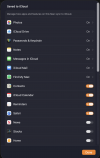
Just for the sake of clarity here, and this is a common misunderstanding, iCloud Drive is a space within iCloud for saving data. This is apart from the data iCloud Syncs (saves) such as Contacts, Calendars, Reminders, Passwords, Notes, Messages, Passwords, Find My Mac, Apps (including some third party apps) etc, etc.

Screenshot 2025-09-18 at 11.12.51.png


So when you say "I turned off iCloud" my heart skips a beat because that is not only difficult because Find My Mac performs a number of very important security functions but very unwise these days. You can think of iCloud Drive as being the same as Proton Drive or Google Drive or OneDrive, off site cloud storage space.
That's what I use iCloud Drive for on my Mac. Storage for data I don't need often on my Mac.

So, I have to assume that what you meant was that you turned off iCloud Drive. Unfortunately it doesn't work just like that. If you had Store My Desktop and Documents Folders in iCloud Drive turned on, turning it off just creates empty Desktop and Documents folders in your Finder Window Sidebar but all your data remains in iCloud Drive, turning it off just prevents it from updating.

Screenshot 2025-09-18 at 12.18.47.png

The above settings are in the OFF position (to the right) on my Mac despite appearances.

Assuming that you have actually turned Store My Desktop and Documents Folders in iCloud Drive on, apart from turning it off you now need to transfer the data from the iCloud Drive folder to the empty Desktop and Documents folders.

This is really a fairly simple procedure assuming you have sufficient storage on your Mac to store the contents.

So, having turned the feature off you need to open the Desktop Folder in iCloud Drive and the empty Desktop Folder in the Finder Sidebar.

This means you will have two Finder Windows open. Select the entire contents of the Desktop folder in iCloud Drive and drag the contents to the empty Desktop folder. Repeat this for the Documents folder.

It may take a while for the files to transfer (download). Make sure the two Documents folders are identical and you can open files in the Documents folder now locally on the Mac. The Desktop is easy to confirm because your files should now be on your Desktop window (and in the folder of course).

Having now got all your files off iCloud Drive and confirmed that, you can now delete them from the iCloud Drive folder. You don't have to do that immediately but to save space it's a good idea.
 

Attachments

  • Screenshot 2025-09-18 at 11.52.33.png
    Screenshot 2025-09-18 at 11.52.33.png
    168.5 KB · Views: 18
Last edited:
Joined
Nov 17, 2024
Messages
16
Reaction score
0
Thanks @Rodananne

Hmm, that's interesting about icloud being linked with the "find my computer" and other security functions. I think I must have turned off iCloud Drive, as I was following MacsBug's directions (although pretty much everything else I can turn off from the iCloud menu is turned off as well).

But I'm not sure... if I'm understanding you correctly, your solution would just be for me to download things locally and not have that folder synced to any storage, is that correct? I guess I was hoping there was a solution that would allow me to know that when I downloaded new music or made a new document, those files would automatically be saved to the cloud. I don't want to have to remember to do that manually because I know from experience I will not always remember!

Am I understanding you correctly?

The latest thing I'm trying is just deleting some other stuff off the hard drive. I had a bunch of videos saved to watch when I was on the road, but I can keep those on an external hard drive if this behavior is only triggered when my hard drive has, say, less than 50 GB of storage left.
 
Joined
Nov 17, 2024
Messages
16
Reaction score
0
Final Update: keeping at least 50 GB space free does prevent the MacBook from deleting files saved to the cloud from the computer hard drive. Which isn't a fantastic solution, but it is better than buying a new computer.
 

Ask a Question

Want to reply to this thread or ask your own question?

You'll need to choose a username for the site, which only take a couple of moments. After that, you can post your question and our members will help you out.

Ask a Question

Top