When I go into System Settings/ Wallpaper there's no option to set custom wallpaper anymore. Also all my previous custom wallpaper settings have disappeared from Wallpaper in System Settings too. The top left box is black with a question mark in the middle. I can only choose from Apple build in wallpaper options. Just noticed this on Tahoe 26. Don't know if this function disappeared in an earlier version of the OS. Updated to Tahoe 26.1 and still no option to set custom wallpaper. Don't when this option disappeared.

You are using an out of date browser. It may not display this or other websites correctly.
You should upgrade or use an alternative browser.
You should upgrade or use an alternative browser.
Custom Wallpaper Options Disappeared
- Thread starter Tenarrows
- Start date

- Joined
- Feb 14, 2021
- Messages
- 1,239
- Reaction score
- 172
That took my breath away when you mentioned it, so I checked right away. I have several hundred custom images that I especially created for my dual monitor setup, which split panoramic pictures to span the two monitors seamlessly. In my case, I was able to locate my files inside 'Macintosh HD/Library/Desktop Pictures/30" + 30" desktop pix' in addition hundreds of other files and folders that I had created over the years.When I go into System Settings/ Wallpaper there's no option to set custom wallpaper anymore. Also all my previous custom wallpaper settings have disappeared from Wallpaper in System Settings too. The top left box is black with a question mark in the middle. I can only choose from Apple build in wallpaper options. Just noticed this on Tahoe 26. Don't know if this function disappeared in an earlier version of the OS. Updated to Tahoe 26.1 and still no option to set custom wallpaper. Don't when this option disappeared.
Are you sure you are not getting there from System Settings -> Wallpaper? What version of Tahoe are you running? I’m on macOS 26.2 Beta (25C5031i). One thing I noticed in this version of Tahoe is that the apple logo is no longer in the Character Viewer.
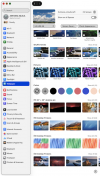
Thank you for the reply. I found the Desktop Pictures directory, only the wallpapers that came with the system are presented. Nothing of mine. I'm including a screen capture. There is no "Your Pictures" option.
Funny thing, when I go into System Settings/Wallpaper after a minute my wallpaper automatically changes to one of the included OS wallpapers. After another minute it reverts back to my custom wallpaper. But again there is no way to actually manually change custom wallpaper anymore.
I'm not on Beta since this is my primary machine. So its a regular update. I'm on Tahoe 26.1. My custom wallpaper options disappeared before the latest update.

Funny thing, when I go into System Settings/Wallpaper after a minute my wallpaper automatically changes to one of the included OS wallpapers. After another minute it reverts back to my custom wallpaper. But again there is no way to actually manually change custom wallpaper anymore.
I'm not on Beta since this is my primary machine. So its a regular update. I'm on Tahoe 26.1. My custom wallpaper options disappeared before the latest update.
Update: Just discovered I can't customize folders either. I created a second admin account on my computer and all the features I'm missing from my main account are there. I can choose custom wallpapers and customize my folder icons. I switched back to my main account and those features are still missing.
- Joined
- Feb 14, 2021
- Messages
- 1,239
- Reaction score
- 172
Try opening your Library folder (top level) and see if there’s a folder named Desktop Pictures. If it does not exist, create one (exact name) and place a few images, .png or .jpg, inside. Now go back to System Settings -> Wallpaper. See if the new folder you created is there.
In my example, my custom folder appears above the other built-in “Desktop Pictures” categories below it.
In my example, my custom folder appears above the other built-in “Desktop Pictures” categories below it.
Attachments
Update:
Tried another internet search and received the following information. The good news, selecting a photo in my "Photos App" did indeed return my "Your Photos" option in System Settings/Wallpaper. It however isn't working correctly. When I try to choose a new image or folder of images nothing happens. I cannot delete anything in the "Your Photos" section either.
What I can do without going into System Settings/Wallpaper is right click any random image on my computer and "Set Desktop Image" as my Wallpaper. I didn't even have that option yesterday. I cannot set a folder of images as Wallpaper though.

Tried another internet search and received the following information. The good news, selecting a photo in my "Photos App" did indeed return my "Your Photos" option in System Settings/Wallpaper. It however isn't working correctly. When I try to choose a new image or folder of images nothing happens. I cannot delete anything in the "Your Photos" section either.
What I can do without going into System Settings/Wallpaper is right click any random image on my computer and "Set Desktop Image" as my Wallpaper. I didn't even have that option yesterday. I cannot set a folder of images as Wallpaper though.

- Joined
- Mar 24, 2024
- Messages
- 337
- Reaction score
- 31
I was curious enough to check my Wallpaper settings but what I see is the same as your Post #3 with the difference that I get a list of all the places and albums I could use for a source of Wallpaper.

If this is not what you see in your Primary User Account but it is available in the second Admin Account you set up then we have to assume there is something wrong with your original account which is why I asked is this simply an OS upgrade of your original Mac or a new Mac.
To explain briefly there is a pitfall in using Migration Assistant where one of the options can cause the problem you have related to Permissions.
Regardless, if the second Admin account is working in all areas, especially ones that did not work for the original, why not continue to use that account? Do not erase the first account it doesn't take up any real space, it's just a different path to the same files.
You might try "repairing" it using Disk Utility First Aid and test it again but there is no harm in having two admin accounts on your device.
If this is not what you see in your Primary User Account but it is available in the second Admin Account you set up then we have to assume there is something wrong with your original account which is why I asked is this simply an OS upgrade of your original Mac or a new Mac.
To explain briefly there is a pitfall in using Migration Assistant where one of the options can cause the problem you have related to Permissions.
Regardless, if the second Admin account is working in all areas, especially ones that did not work for the original, why not continue to use that account? Do not erase the first account it doesn't take up any real space, it's just a different path to the same files.
You might try "repairing" it using Disk Utility First Aid and test it again but there is no harm in having two admin accounts on your device.
@ Rodananne- Thanks for the reply and suggestions. I purchased my iMac new from the Apple store about three years ago, so this was simply a software update.
I found a workaround by creating a new desktop in my primary account then made that desktop number one. Creating a new desktop brings back my previous wallpapers. While I still can't change my wallpaper or delete previous wallpaper settings I can keep adding images to that one folder.
I haven't tried disk utilities yet. I'll do that when I have some down time. I can use the second Admin account I suppose. Though I have to go through the set up sequences and choose my preferences.
It appears this has been a problem (for others) since last September. So I'm hoping Apple has a fix for this before I try anything else more extreme.
I found a workaround by creating a new desktop in my primary account then made that desktop number one. Creating a new desktop brings back my previous wallpapers. While I still can't change my wallpaper or delete previous wallpaper settings I can keep adding images to that one folder.
I haven't tried disk utilities yet. I'll do that when I have some down time. I can use the second Admin account I suppose. Though I have to go through the set up sequences and choose my preferences.
It appears this has been a problem (for others) since last September. So I'm hoping Apple has a fix for this before I try anything else more extreme.
- Joined
- Feb 14, 2021
- Messages
- 1,239
- Reaction score
- 172
I see where you’re coming from. I updated to the latest beta (release candidate) 26.2 (25C56) and I’m also missing some of the custom desktop pictures I created but was relieved that they are still in my Library folder. I will wait until the final version comes out and if the situation remains the same, I will file a bug report regarding the issue. In the meantime I suggest checking your /Library/Desktop Pictures folder to make sure your custom desktop pictures are still there.Updated to 26.2 and the issue still isn't fixed. There are no options to set custom wallpapers at all. I know other iMac users had the same problem and it was reported to Apple months ago. Very frustrating.
Thanks, my custom pictures are not in the Desktop Pictures folder and as before I cannot drag or copy and paste anything into that folder though it says read and write for system under info. I don't know if this would help but I tried changing "everyone" to read and write and it wouldn't allow me to do that though I was able to unlock the folder to make the change. It just says I don't have permission. As stated above there isn't even an option to choose custom wallpaper in the wallpaper section of system settings anymore.
- Joined
- Feb 14, 2021
- Messages
- 1,239
- Reaction score
- 172
Your account probably does not have full admin privileges. Go into Settings (and I can’t seem to find “users & groups” so just type it in the search field) and for your user account, click on the info button (circled “I”) and turn on the option for “Allow this user to administer the computer.” Hopefully this will give you full admin access to the computer.Thanks, my custom pictures are not in the Desktop Pictures folder and as before I cannot drag or copy and paste anything into that folder though it says read and write for system under info. I don't know if this would help but I tried changing "everyone" to read and write and it wouldn't allow me to do that though I was able to unlock the folder to make the change. It just says I don't have permission. As stated above there isn't even an option to choose custom wallpaper in the wallpaper section of system settings anymore.
It’s crazy how Apple keeps on “tweaking” the interface with every update, and I just updated to 26.3 Beta (25D5087f).
Ask a Question
Want to reply to this thread or ask your own question?
You'll need to choose a username for the site, which only take a couple of moments. After that, you can post your question and our members will help you out.